|
Universal Document Converter lets users convert PowerPoint presentations to JPEG format while retaining control over a whole range of conversion settings. Converting a PowerPoint presentation to JPEG format is one way to ensure that it can be downloaded by all users, regardless of their operating system or software package. JPEG files can be viewed directly in the web browser.
Please follow this manual to start converting of PowerPoint presentations.
-
Download and install Universal Document Converter software onto your computer.
-
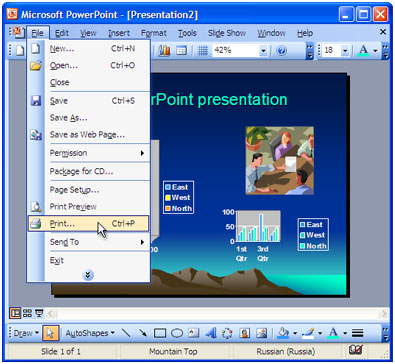
Open the presentation in Microsoft PowerPoint and press File->Print... in application main menu.
-
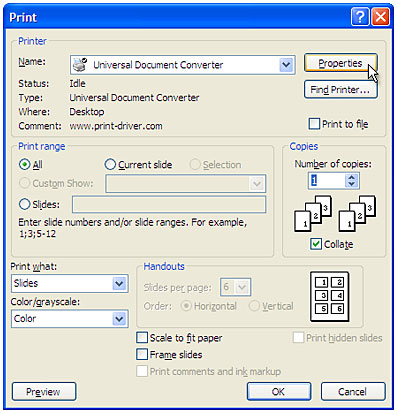
Select Universal Document Converter from the printers list and press Properties button.
-
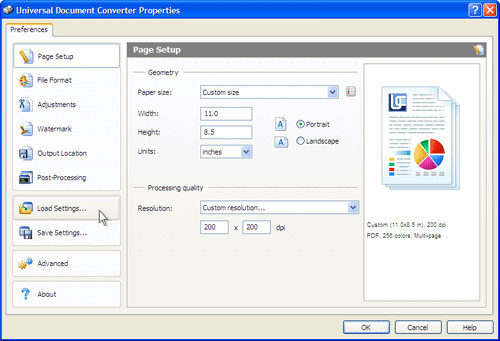
On the settings panel, click Load Properties.
-
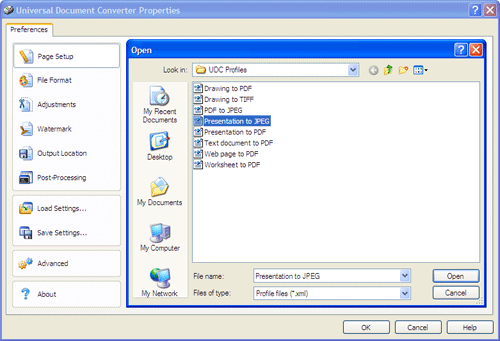
Use the Open dialog to select "Presentation to
JPEG.xml" and click Open.
-
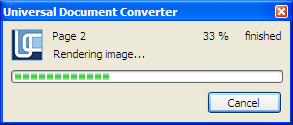
Press OK in Microsoft PowerPoint Print dialog to start converting. When the JPEG file is ready, it will be saved to the My Documents\UDC Output Files folder by default.
-
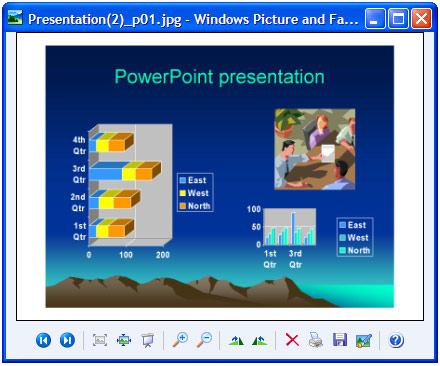
The converted presentation will then be opened in Windows Picture and Fax Viewer software or another viewer associated with JPEG files on your computer.
|