|
Today PDF is one of the most popular formats for saving and sharing electronic documents. Because of the format?s popularity, the need often arises to convert documents and spreadsheets to PDF format. Universal Document Converter lets users convert Excel spreadsheets to PDF format with complete control over the PDF parameters and the option to password protect the resulting file.
Please follow this manual to start converting of Excel file (*.xls).
-
Download and install Universal Document Converter software onto your computer.
-
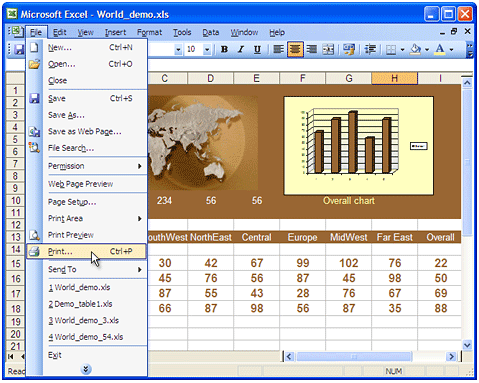
Open Excel file (*.xls) in Microsoft Excel and press File->Print... in the application main menu.
-
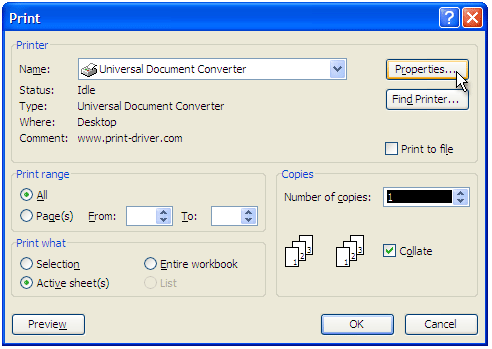
Select Universal Document Converter from the list of printers and press the Properties button.
-
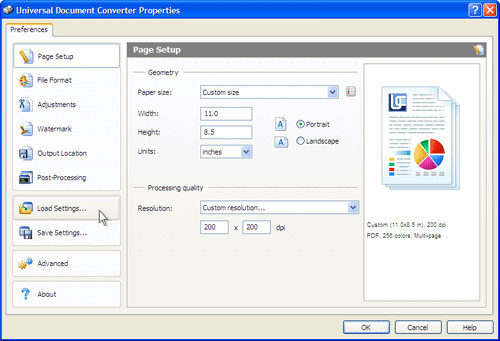
On the settings panel, click Load Properties.
-
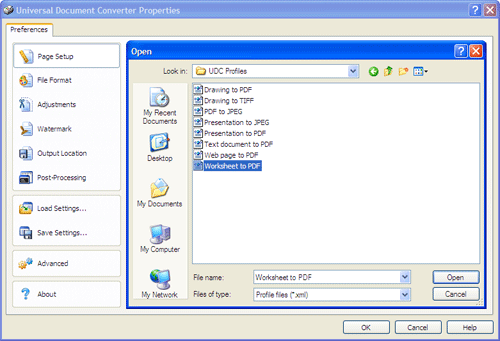
Use the Open dialog to select "Worksheet to PDF.xml" and click Open.
-
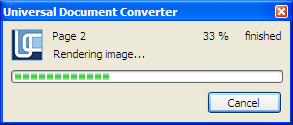
Press OK in Microsoft Excel Print dialog to start converting. When the PDF file is ready, it will be saved to the My Documents\UDC Output Files folder by default.
-
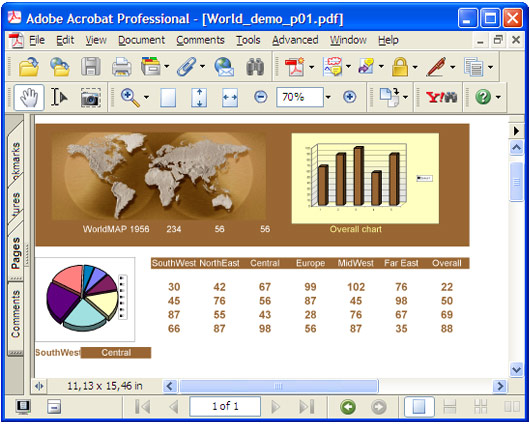
The converted spreadsheet will then be opened in Adobe Acrobat or another viewer associated with PDF files on your computer.
|