|
Converting Outlook emails to graphic files is a rare task that few software packages can handle. One solution is Universal Document Converter, which offers a virtual printer for easily converting Outlook emails to graphic formats such as PNG, BMP, GIF and other popular formats.
Please follow this manual to start converting of Outlook email.
-
Download and install Universal Document Converter software onto your computer.
-
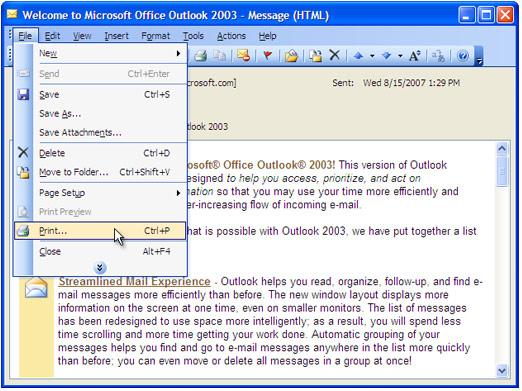
Double-click the email in Outlook inbox to open it and press File->Print... in main menu.
-
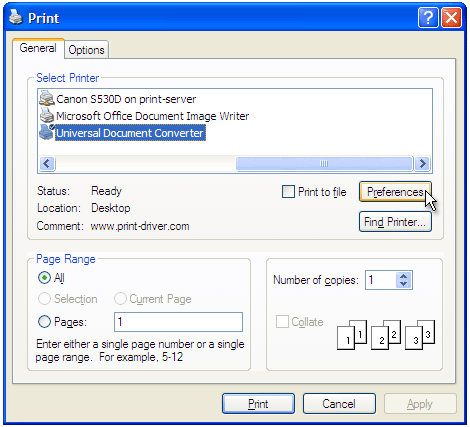
Select Universal Document Converter from the printers list and press Preferences button.
-
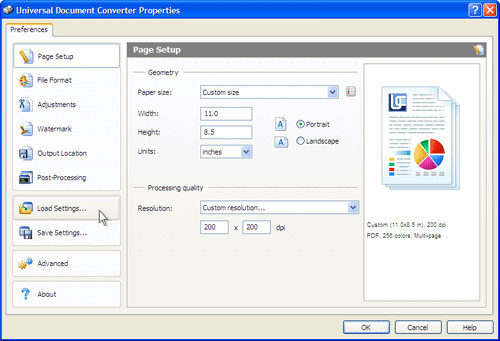
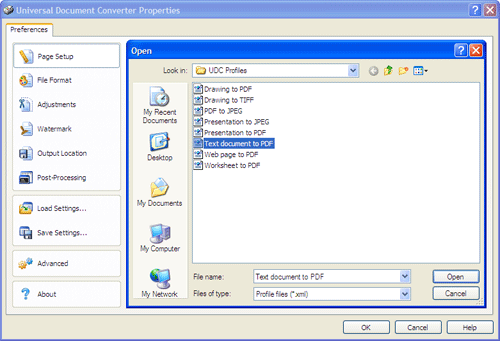
On the settings panel, click Load Properties.
-
Use the Open dialog to select "Text document to PDF.xml" and click Open.
-
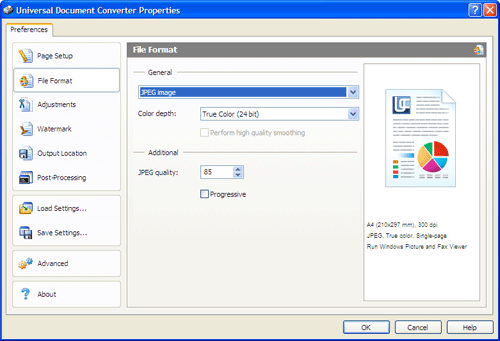
Select the required image format on the File Format tab and click
OK to close the Universal Document Converter Properties window.
-
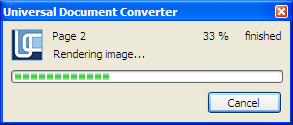
Press OK in Microsoft Outlook Print dialog to start converting. When the image file is ready, it will be saved to the My Documents\UDC Output Files folder by default.
-
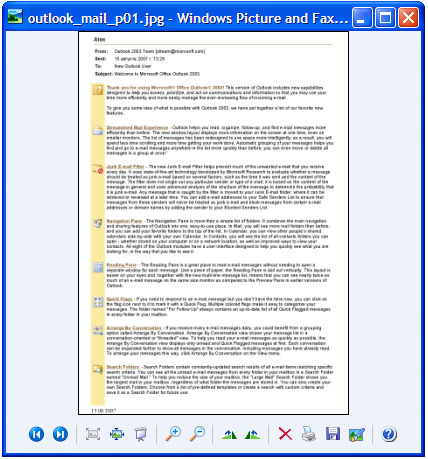
The converted email will then be opened in a program adjusted as a default image viewer on your computer.
|