|
On occasion, users need to save emails in Microsoft Outlook as PDF files. While none of the standard software solutions are able to convert from Outlook to PDF, Universal Document Converter specializes in unique conversion tasks. Universal Document Converter?s powerful virtual printer quickly and easily converts Outlook emails to standard PDF files that can be opened by and PDF viewer.
Please follow this manual to start converting of Outlook emails.
-
Download and install Universal Document Converter software onto your computer.
-
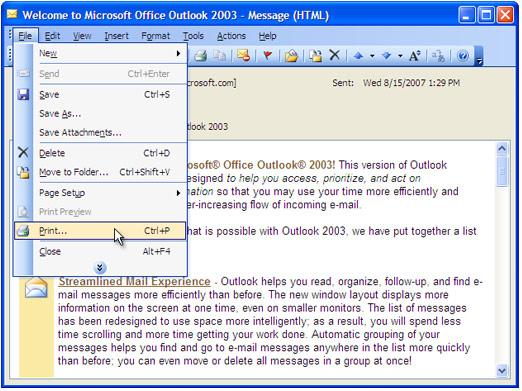
Double-click the email in Outlook inbox to open it and press File->Print... in main menu.
-
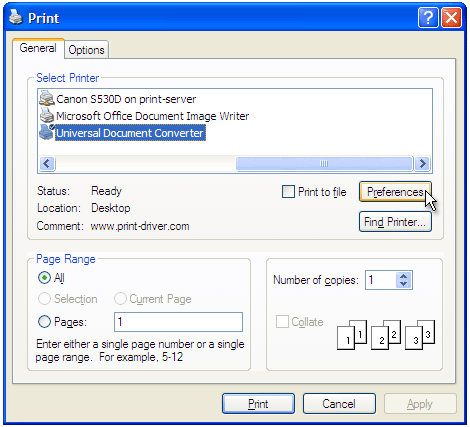
Select Universal Document Converter from the printers list and press Preferences button.
-
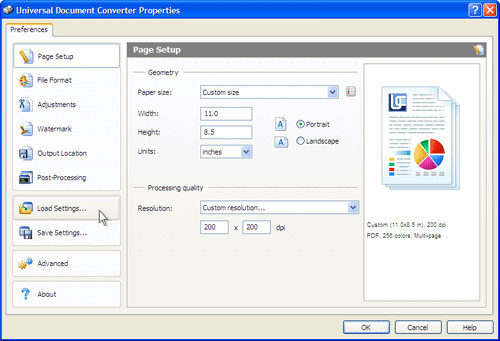
On the settings panel, click Load Properties.
-
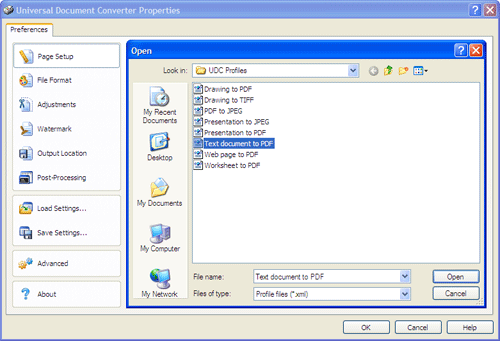
Use the Open dialog to select "Text document to PDF.xml" and click Open.
-
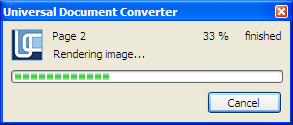
Press OK in Microsoft Outlook Print dialog to start converting. When the PDF file is ready, it will be saved to the My Documents\UDC Output Files folder by default.
-
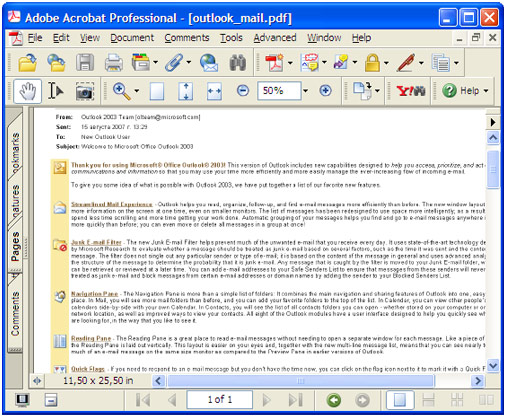
Converted email will then be opened in Adobe Acrobat or another viewer associated with PDF files on your computer.
|