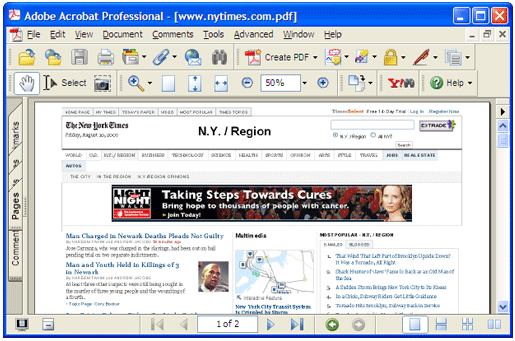
Converting an HTML file to PDF format is one way of creating an electronic document that will display properly on any computer. Universal Document Converter is the optimal solution for this type of conversion because it offers full control over a wide range of parameters while keeping the process simple for the user. Converted files meet all specifications and can be opened in any PDF viewer.
-
Download and install Universal Document Converter software onto your computer.
-
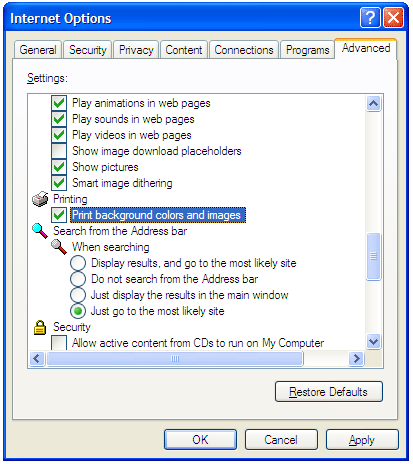
Open the web page in Internet Explorer. In main menu, go to Tools->Internet Options->Advanced. In Printing section check the Print Background colors and images option and press OK.
-
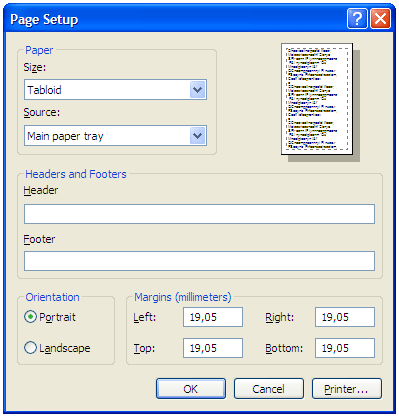
To remove page header and footer from output PDF file, in main menu press File->Page Setup. Remove any text from Header and Footer fields and press OK.
-
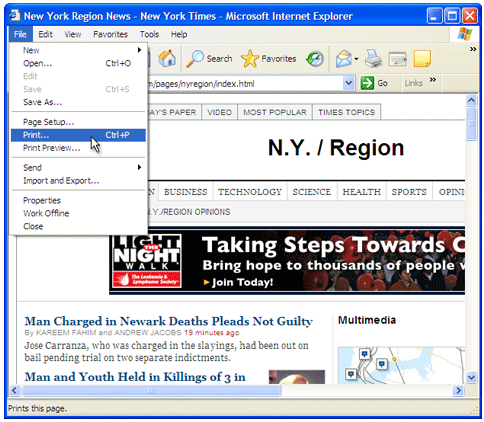
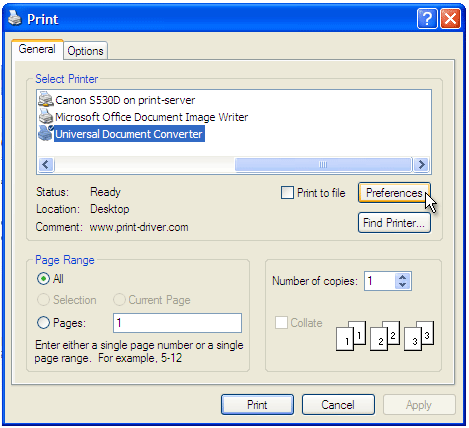
Press File->Print... in Internet Explorer main menu.
-
Select Universal Document Converter from the printers list and press Preferences button.
-
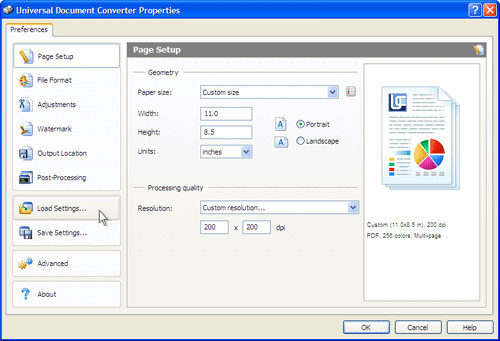
On the settings panel, click Load Properties.
-
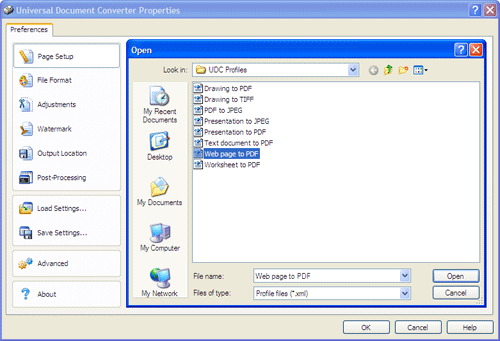
Use the Open dialog to select "Web page to PDF.xml" and click Open.
-
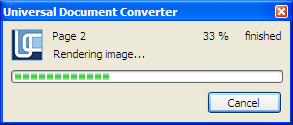
Press Print button to start converting. When the PDF file is ready, it will be saved to the My Documents\UDC Output Files folder by default.
-
Converted document will then be opened in Adobe Acrobat or another viewer associated with PDF files on your computer.