|
Converting documents from Word to TIFF format is appropriate in a number of situations, including faxing. Universal Document Converter makes this type of conversion quick and easy, with flexible settings that let you determine color depth and other parameters. With Universal Document Converter, the virtual printing process couldn?t be easier.
Please follow this manual to start converting of Word documents.
-
Download and install Universal Document Converter software onto your computer.
-
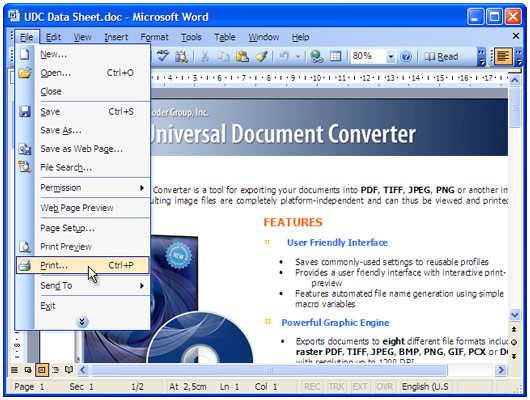
Open the document in Microsoft Word and press File->Print... in application main menu.
-
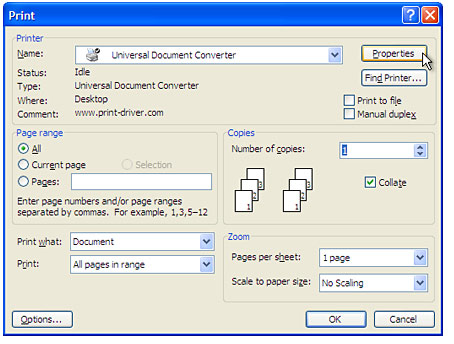
Select Universal Document Converter from the printers list and press Properties button.
-
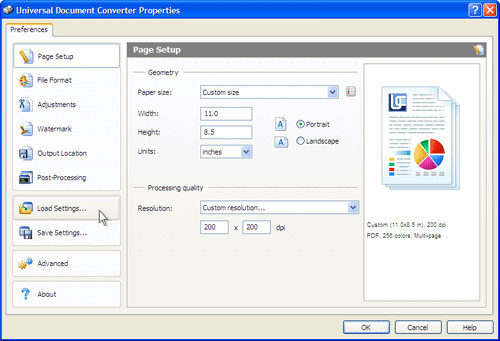
On the settings panel, click Load Properties.
-
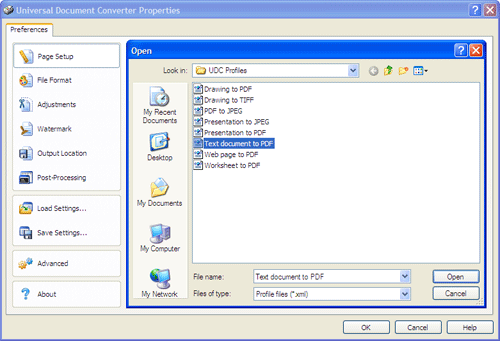
Use the Open dialog to select "Text document to PDF.xml" and click Open.
-
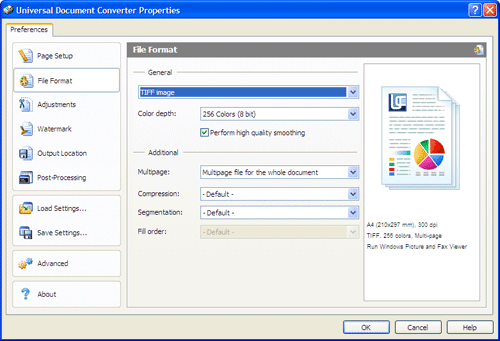
Select TIFF image on the File Format tab and click
OK to close the Universal Document Converter Properties window.
-
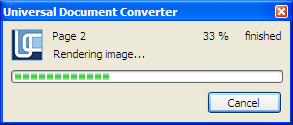
Click OK in Microsoft Word Print dialog to start converting. When the TIFF file is ready, it will be saved to the My Documents\UDC Output Files folder by default.
-
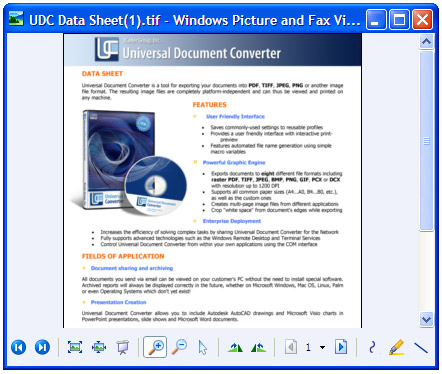
The converted document will then be opened in Windows Picture and Fax Viewer software or another viewer associated with TIFF files on your computer.
|